
 Blog
Blog🔗 Official Portal
registrationandtouristcare.uk.gov.in — the ONLY legitimate online registration portal. Registration is free. Any site charging a fee is a fraud.
The most common complaint in every Chardham Yatra forum, every year, is some version of the same story: ‘I thought I had registered, but at the checkpoint they said my registration was incomplete.’ Nine times out of ten, the root cause is one of three things — a name that does not match the ID, an ID file that was too large to upload correctly, or a registration form that was submitted before the OTP was verified.
The online portal at registrationandtouristcare.uk.gov.in is well-designed by government standards. The process is genuinely fast for a pilgrim who arrives prepared. But it has specific technical quirks that are not documented on the portal itself — particularly around file uploads and the way incomplete registrations are handled silently. This guide walks you through all nine steps and flags the exact mistake at each stage that catches pilgrims off guard.
Before You Open the Portal — 4 Things to Prepare
Completing the registration in one uninterrupted session takes 8 to 12 minutes. Coming in unprepared and having to stop mid-process to gather documents can mean starting over — and on 6 March, when the portal opens, server congestion means every session counts. Prepare these four things the evening of 5 March:
- Your government ID scan compressed to under 150 KB — one file per pilgrim, in JPG or PNG format.
- The exact name as it appears on your ID for every pilgrim in your group.
- Your active mobile number — the same one you want linked to your registration permanently.
- Your planned travel dates for each dham — approximate is fine, exact is better.
💡 iPhone Users: Convert HEIC to JPG Before 6 March
iPhones save photos in HEIC format by default. The portal does NOT accept HEIC. Go to Settings → Camera → Formats → Most Compatible to switch to JPG for future photos, then re-photograph your ID. Or use any free HEIC-to-JPG converter online.
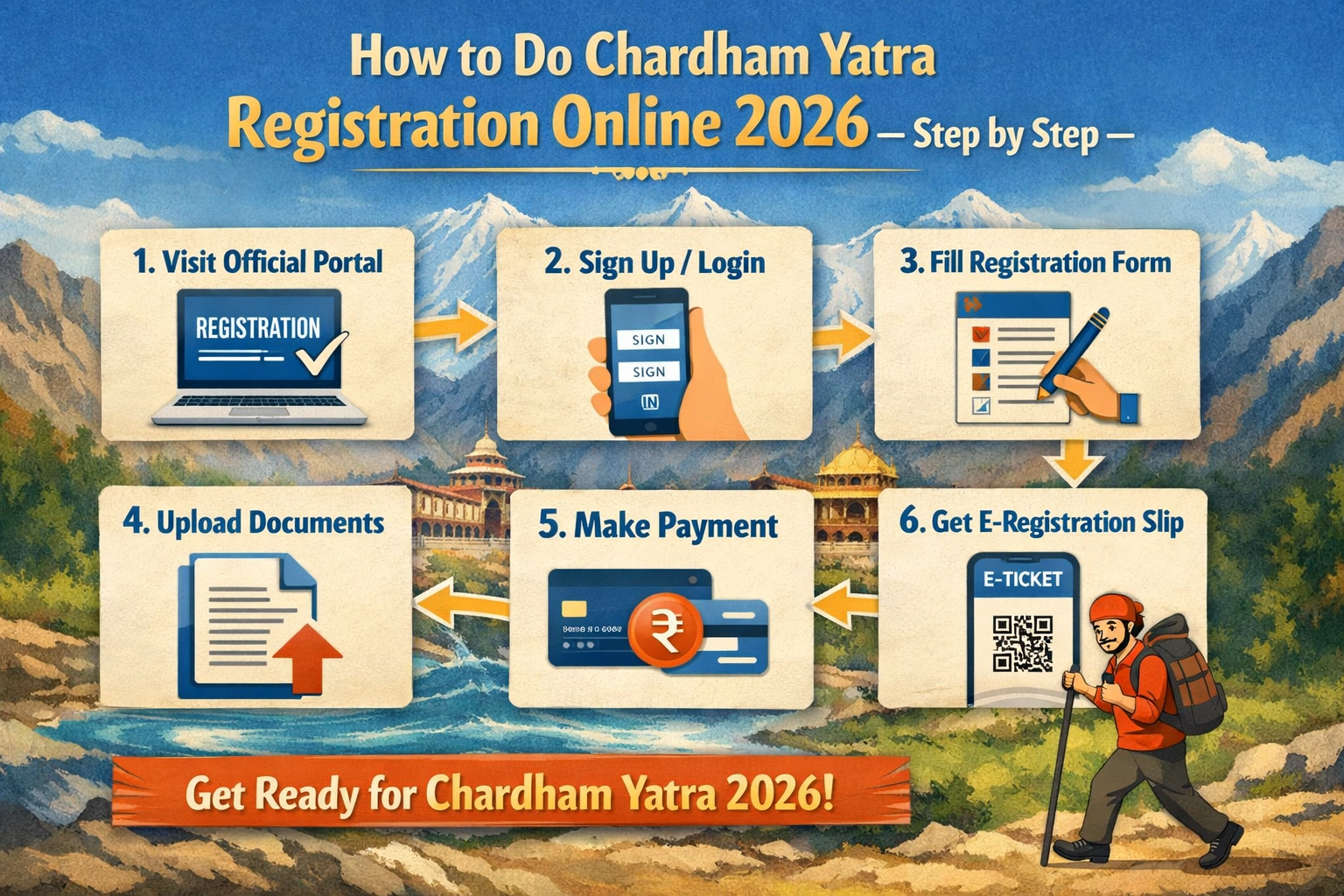
The 9-Step Online Chardham Yatra Registration Process — With Mistakes to Avoid
|
Step |
Action |
Details |
Common Mistake |
|---|---|---|---|
|
1 |
Open the portal |
Visit registrationandtouristcare.uk.gov.in — bookmark it now. Do not search for it on Google on 6 March; fraudulent clone sites appear in paid ads during peak registration season. |
Using a clone site that looks identical but charges a fee. |
|
2 |
Click Register / Login |
New pilgrims click Register. If you registered in a previous year, your account still exists — click Login and use the same mobile number. |
Creating a duplicate account instead of logging into the existing one. |
|
3 |
Enter personal details |
Full name (exactly as on your ID), mobile number, permanent address, district, state. Double-check name spelling before proceeding. |
Name mismatch with ID — cannot be corrected at checkpoints. |
|
4 |
OTP verification |
A 6-digit OTP is sent to your mobile number. Enter it within 3 minutes. If it does not arrive, check that your number is active and the network has signal. |
OTP expires after 3 minutes; most pilgrims don’t have the page ready. |
|
5 |
Set your password |
Create a password for future logins. Save it immediately — password recovery requires the same mobile number. |
Forgetting the password and needing recovery during a slow server day. |
|
6 |
Select dhams and dates |
Choose which dhams you plan to visit (can be 1 to 4) and enter your planned visit date for each. Dates can be changed later — enter your best estimate. |
Leaving date fields blank, which creates an incomplete registration. |
|
7 |
Upload ID proof |
One JPG or PNG file per pilgrim, between 10 KB and 150 KB. The portal gives no error for files above 150 KB — it just silently fails to attach. |
Uploading a 3–5 MB phone photo without compressing it first. |
|
8 |
Review and submit |
The summary screen shows all pilgrim names, dates, and dhams. Verify every name matches the corresponding ID exactly before clicking Submit. |
Rushing through the review screen without checking name spellings. |
|
9 |
Download your parchi |
The confirmation screen shows a QR-coded registration letter. Download it immediately. A link is also sent to your email. Print a physical copy the same day. |
Assuming the email link is enough and not printing a physical backup. |
Registering Multiple Pilgrims in One Session
The portal allows you to register multiple pilgrims under a single account — a family of five can all be registered in one login session without creating separate accounts. After completing your own details in Step 3, look for the ‘Add Pilgrim’ or ‘Add Member’ option on the registration form before submitting.
Each additional pilgrim requires their own separate ID upload (one JPG or PNG per person, 10 KB to 150 KB each). Their names must each match their respective IDs exactly. A single QR code is generated per pilgrim — not one code for the group. At checkpoints, each person’s QR is scanned individually.
- Children aged 5 to 17: register individually with their Aadhaar (if issued) or school ID at an offline counter if no Aadhaar is available.
- Children under 5: not required to register but must be declared in the group count on the primary pilgrim’s form.
What Happens After You Submit — The Confirmation Screen
Once submission is complete, the portal displays a confirmation screen with your QR-coded registration letter. This screen is the most important moment of the process — do not close it before downloading the letter.
- Click the download button immediately. The file saves as a PDF containing your QR code, name, registration number, and declared dham visit dates.
- The same letter is sent to your registered email — but email delivery can be delayed by 10 to 30 minutes during high-traffic periods. Do not rely solely on the email.
- Print a physical copy on the same day. Mobile signal is absent between Triyuginarayan and Gaurikund on the Kedarnath route, and unreliable near Gangotri town.
- If the confirmation screen does not appear after submitting, do not submit again immediately. Log out, log back in, and check whether your registration appears under ‘My Registrations.’ Duplicate submissions create registration conflicts.
How to Modify Your Registration After Submitting
Travel dates change. A family member drops out. You decide to add Badrinath to a Kedarnath-only registration. All of these modifications can be made through the same portal.
- Log in at registrationandtouristcare.uk.gov.in using your mobile number and password.
- Navigate to ‘My Registrations’ or ‘Edit Registration.’
- Select the field you want to change — date, dham selection, or pilgrim count.
- Save changes and re-download your updated QR-coded registration letter.
Date modifications are allowed throughout the season subject to daily capacity availability. If your target date shows no availability, choose a nearby date and monitor the portal — cancellations release availability on a rolling basis.
Troubleshooting — Common Portal Problems and Solutions
OTP Not Received
- Check that your mobile number has network signal and is not on DND (Do Not Disturb) mode.
- Wait 2 minutes, then request a resend OTP using the link on the portal.
- If the number is an international number (NRI pilgrim), ensure international SMS is enabled.
Upload Fails Silently
- Your file is almost certainly above 150 KB. Compress it to 80–120 KB using compressjpeg.com or ilovepdf.com.
- Verify the file format is JPG or PNG — not PDF, HEIC, or WebP.
- After re-uploading, look for a thumbnail preview of the document on the form — if the preview appears, the upload succeeded.
Portal Is Slow or Times Out
- This is normal on 6 March morning between 7 AM and 11 AM IST. Try at 5–6 AM or after 9 PM.
- Use the WhatsApp registration method (send YATRA to 8394833833) as an alternative — it is significantly faster during portal congestion.
Frequently Asked Questions
Q: Can I complete registration on mobile without a computer?
A: Yes. The portal is mobile-responsive and works on any smartphone browser. Safari, Chrome, and Firefox all work. The only additional step for mobile users is ensuring the ID photo is in JPG or PNG format and under 150 KB before uploading.
Q: Is there a deadline for completing online registration?
A: The portal remains open throughout the yatra season — there is no hard deadline. However, registering on or close to 6 March gives you the best date flexibility and the most time to arrange accommodation and transport before peak season fills.
Q: Can I use someone else’s phone number for my registration?
A: You can, but it creates practical problems. Your yatra parchi is linked to that number, your login uses that number, and any modifications or date changes require OTP verification to that same number. Use your own active mobile number for every pilgrim you register.
Online Registration in Under 10 Minutes
Compress your ID to under 150 KB. Open registrationandtouristcare.uk.gov.in. Have your ID name and travel dates ready. Complete OTP verification within 3 minutes. Upload the compressed ID. Review names carefully on the summary screen. Download the QR-coded parchi immediately. Print it the same day. That is the entire process — and it takes less time than the average temple queue.
For the WhatsApp registration alternative, offline counter locations, and help downloading your yatra parchi if you missed the confirmation screen, see the related guides at Kedarnath Tourism.


